
iPad handbook
Basic Navigation
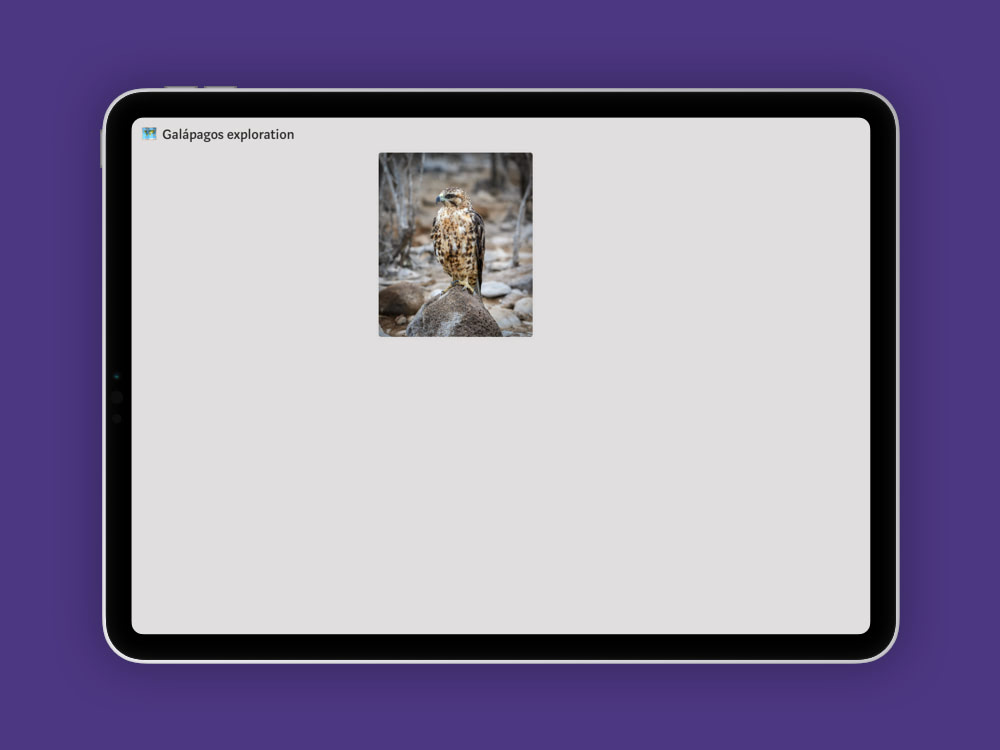
a card

a piece of content in Muse; can be boards, notes, images, videos, PDFs, links, or other files
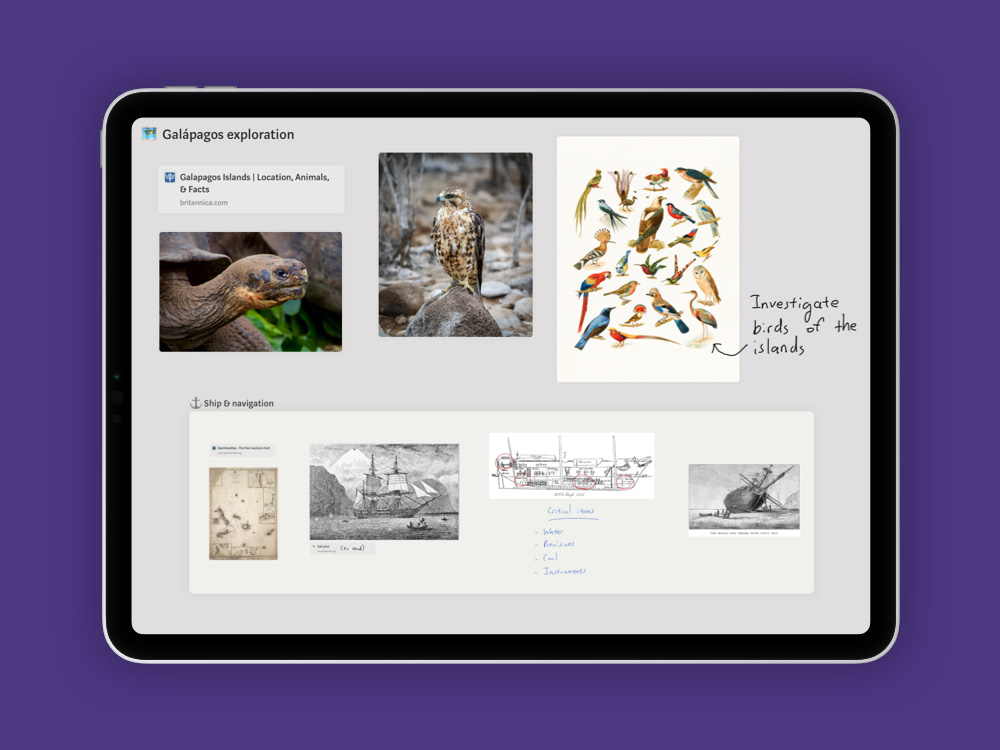
a board
where your cards live; might resemble a project, a train of thought, a folder of content — it’s up to you
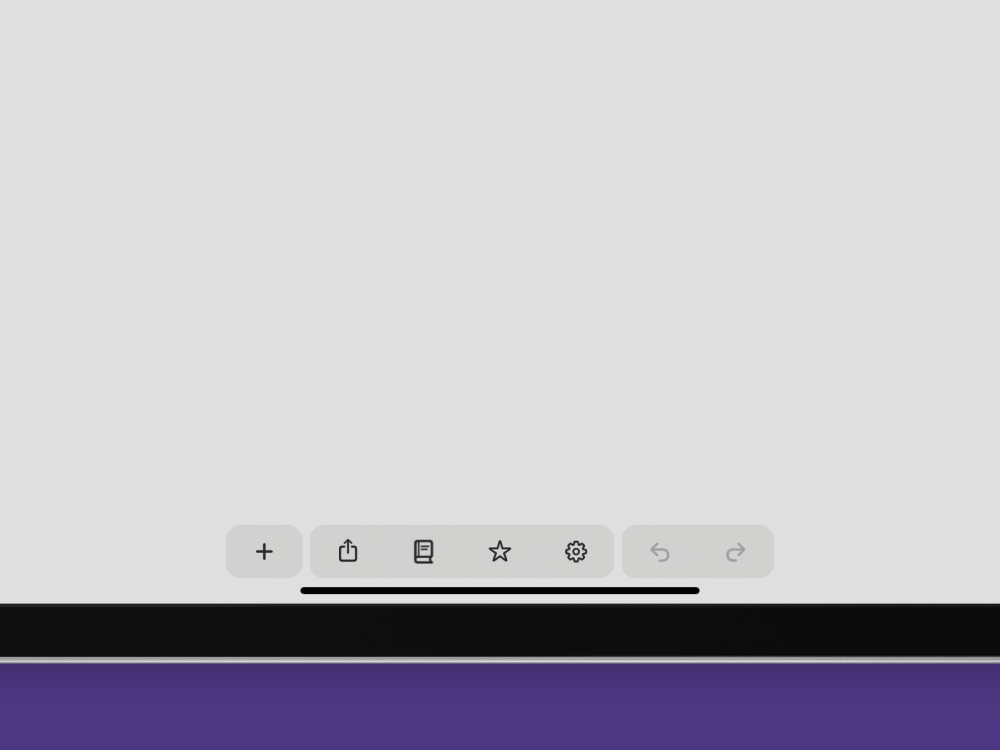
to scroll
drag with one or two fingers; on boards scrolling is locked to the direction of your content
Card Interactions
to create a board
drag in a new board from the left edge of the app
to move
drag cards with one finger
to resize
drag the lower-right corner of cards with one finger; tap the lower-right corner of a board card to shrink its size to fit the content
to title
open the action bar, then tap on the title field at the top of the screen
to undo or redo
tap anywhere with two fingers to undo, tap with three fingers to redo (or use the buttons in the action bar)
Adding Content
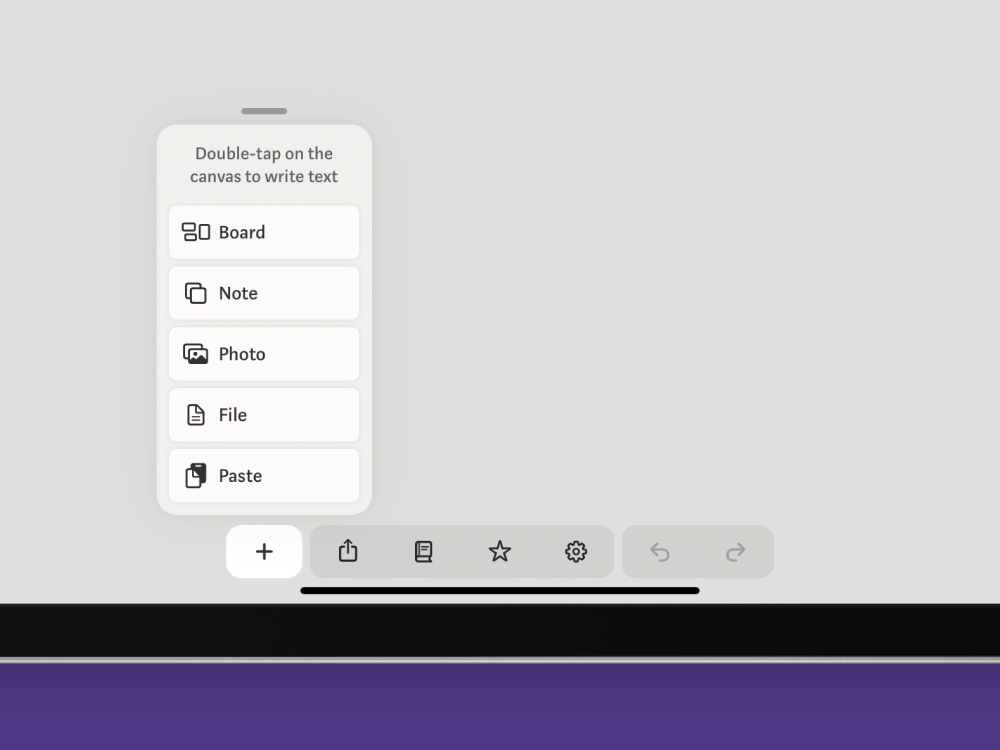
the Add panel
accessible through the action bar; lets you add notes, open the file picker and photo picker, and paste content (tip: you can move panels to anywhere on the screen)
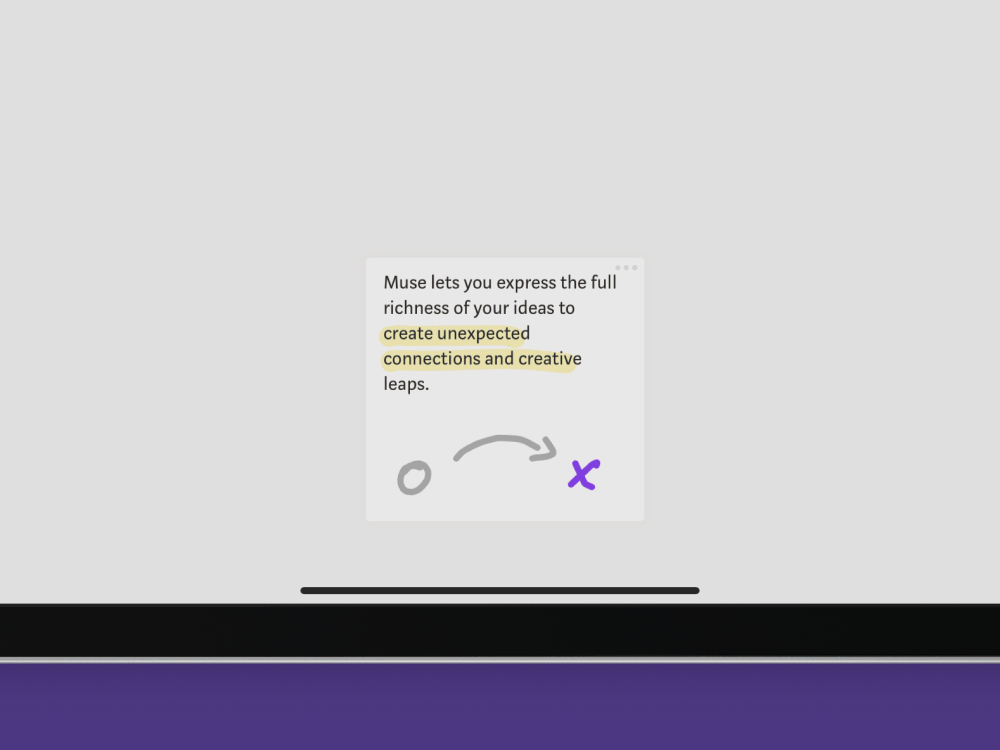
a note
a small card that can be typed or inked on; great for short annotations or as fixed-size "sticky notes"
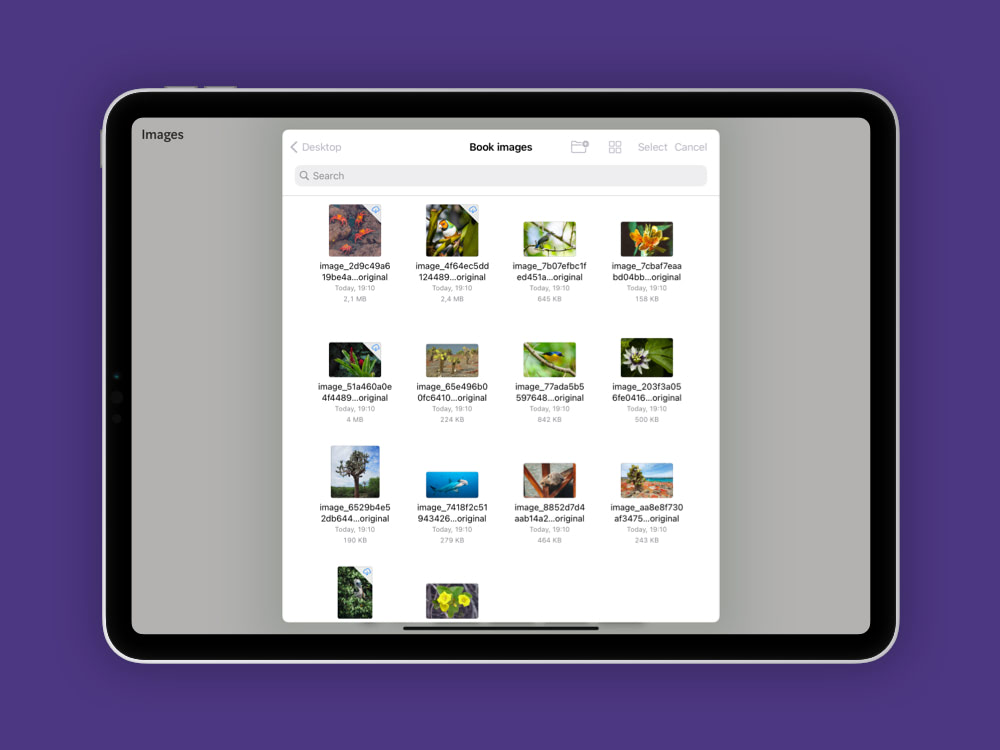
the file picker
a way to import one or more files; accessible through the Add panel; supports all types of cards as well as Muse bundles (added files will appear in the inbox)
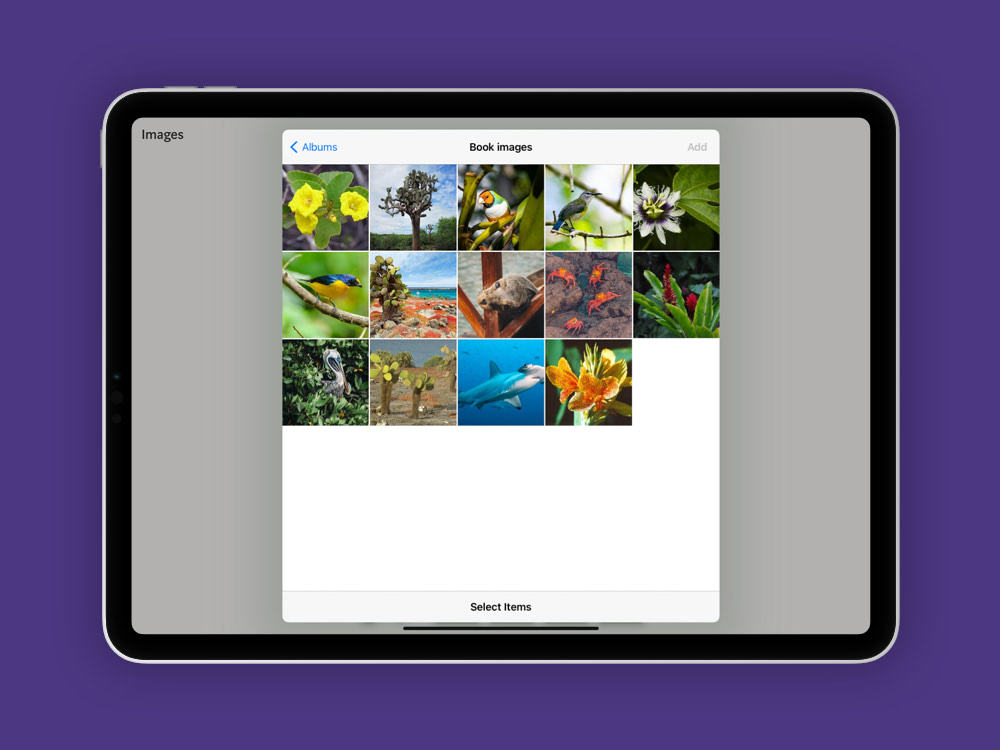
the photo picker
a way to import photos and videos from your camera roll; accessible through the Add panel (the added photo will appear in the inbox)
to copy and paste
copy selected content on your iPad, iPhone, or Mac, then paste it in Muse through the Add panel or by pressing CMD+V (pasted content will appear in the inbox)
to drag from [app]
open another app in split view or slide over alongside Muse, then select and drag content from that app into Muse
to share
use the share sheet inside another app to import content into Muse (shared content will appear in the inbox)
to screenshot
take a screenshot in any app by dragging in with the Pencil from a bottom corner of the screen (→ or take a screenshot using buttons), then share that screenshot to Muse
Pencil Tools
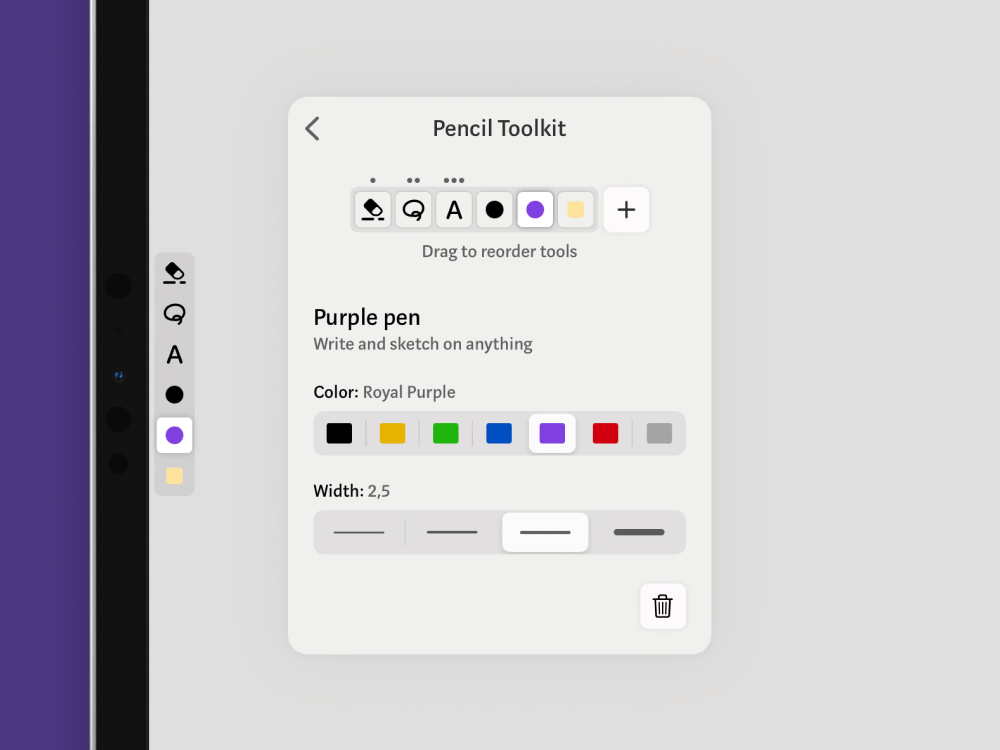
the toolkit
configurable set of Pencil tools; pick your tools and customize them in the Settings panel, then switch between tools from anywhere
to switch tools
swipe in the toolkit with the Pencil from any edge of the screen, then tap on a tool with your finger or the Pencil; swipe away to dismiss
to quick-switch tools
Double-tap the side of Pencil; or swipe in the toolkit with the Pencil from any edge and keep dragging until it switches to the last used tool
to erase
switch to the erase tool, or hold down one finger anywhere (this temporarily switches the Pencil to the first tool in the toolkit)
to Scribble
switch to the Scribble tool, then handwrite anywhere to add or edit note cards and titles (→ learn more about Scribble)
to select
switch to the selection tool, or hold down two fingers anywhere (this temporarily switches the Pencil to the second tool in the toolkit), then select content with the Pencil
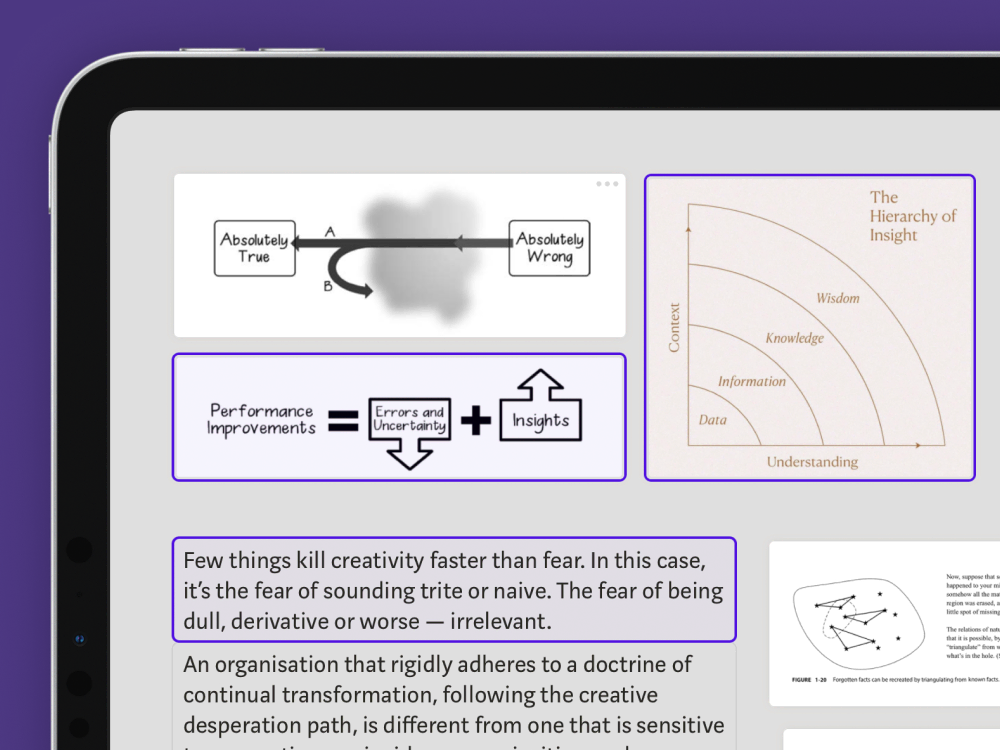
to quick-select cards
hold down two fingers anywhere (if the selection tool is in the second toolkit slot), then tap cards with your other hand to select them; double tap text blocks to select their whole group
to excerpt
drag the selected image or PDF content with your finger, then move the new card to a board or the inbox
Text Editing
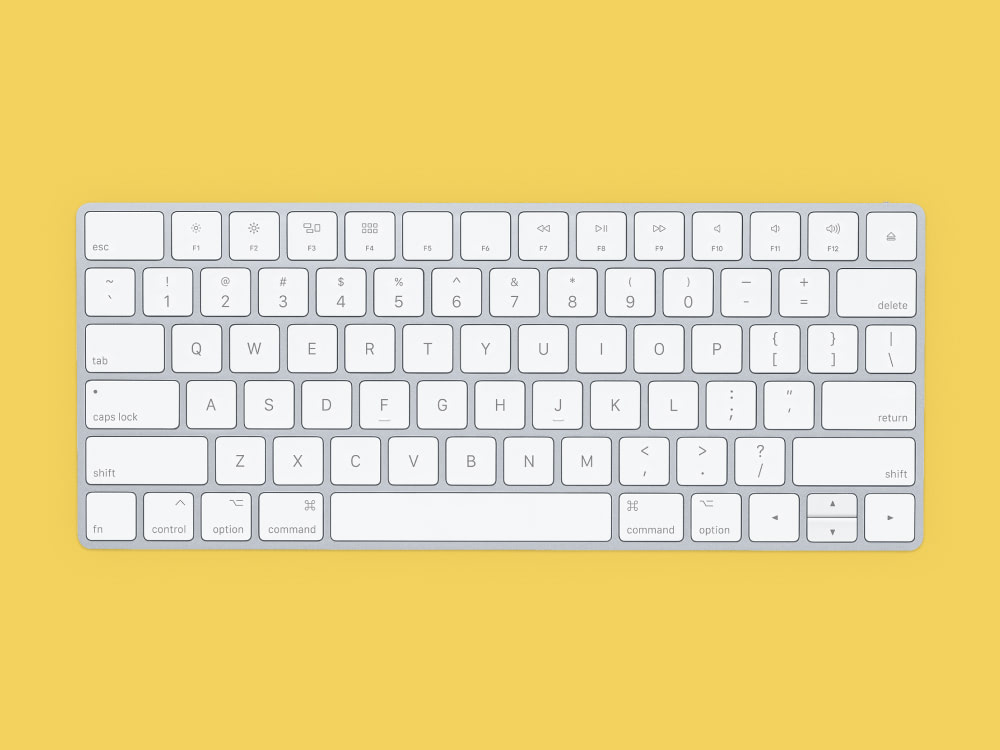
the keyboard
connect an external bluetooth keyboard (or use the software keyboard) and lay it next to the iPad on your desk to quickly switch between it and the Pencil
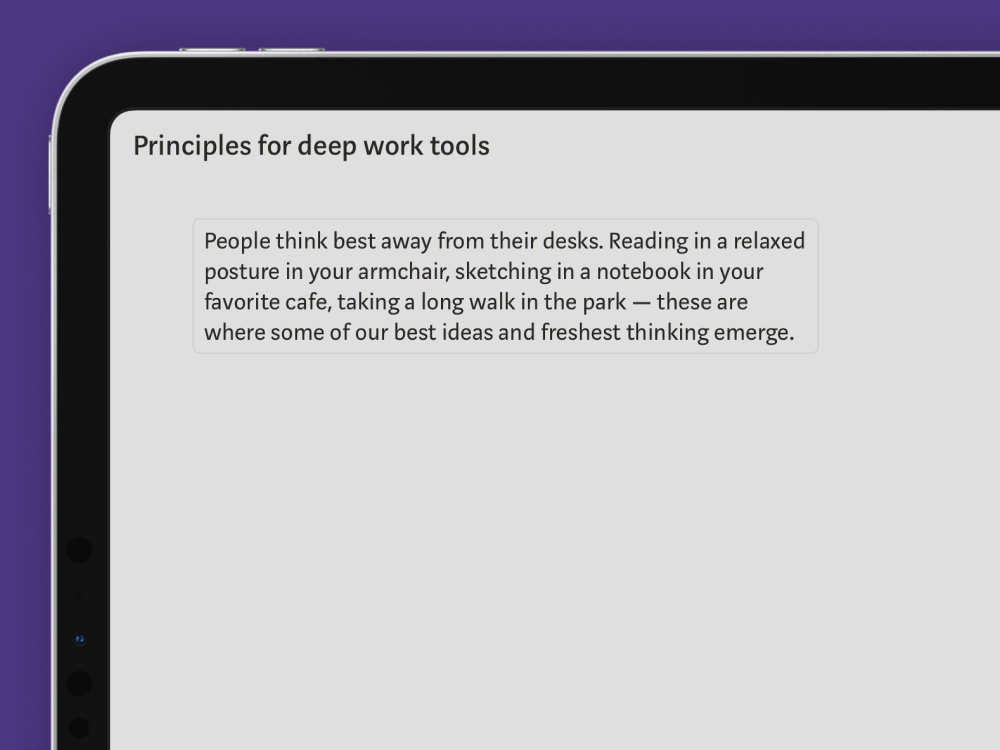
a text block
each paragraph you write becomes a text block which can be moved or resized; multiple paragraphs form a group
to write
double tap anywhere on a board canvas to create a new text block
to move text blocks
drag within their group to reorder; drag out of their group to place elsewhere on the canvas; move a whole group by selecting or quick-selecting it first
to resize text blocks
drag their right edge to change the width; resizing a group will change the width of the whole group
Exporting
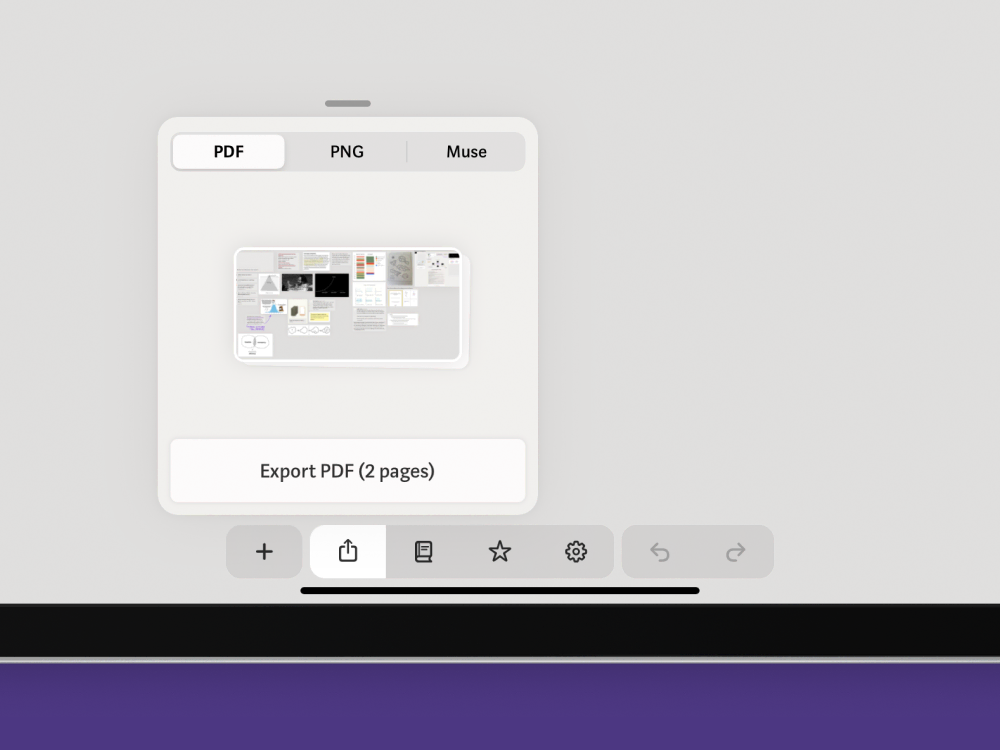
the Export panel
accessible through the action bar; lets you export content in its source format, and boards as PDFs, PNGs, or Muse bundles (tip: you can move panels to anywhere on the screen)
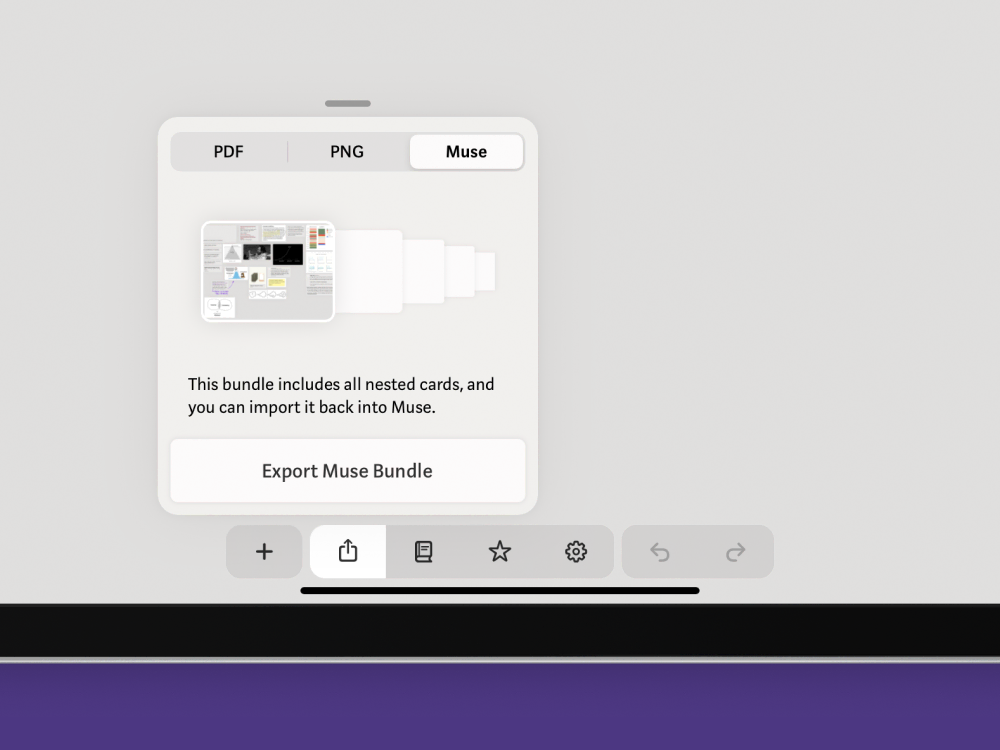
a Muse bundle
a file that includes all content of a board; can be imported to Muse for backup or duplication; can be renamed to a .zip and uncompressed to get the source files
Advanced Usage
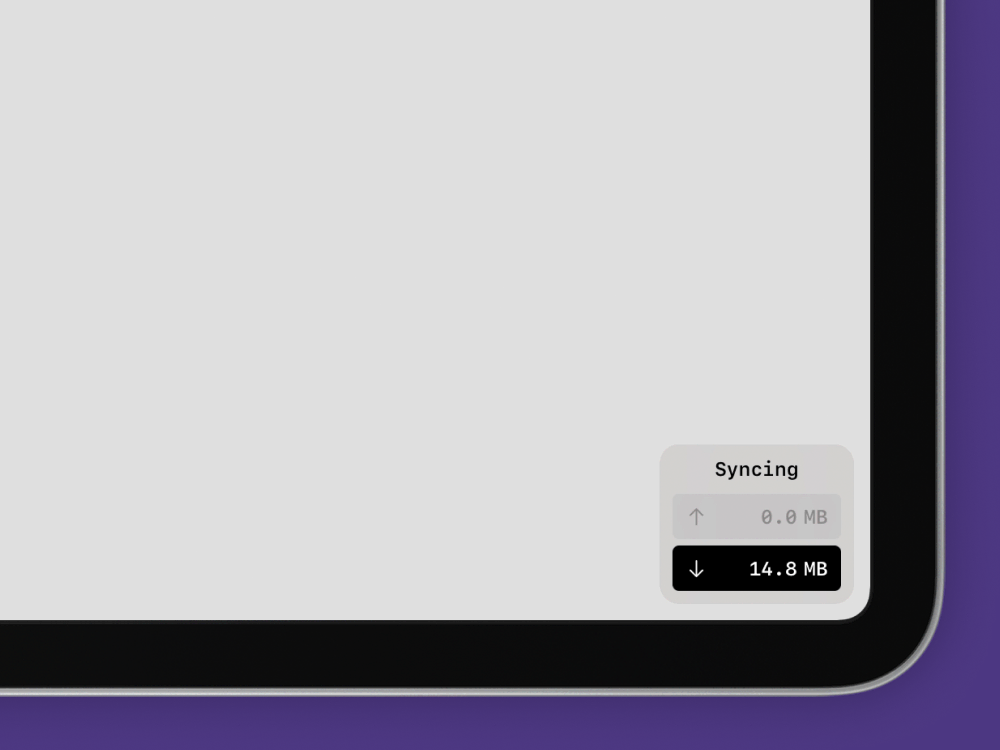
the sync status
tap the circle in the bottom right corner of the app to view details; shows the current status and remaining data to be uploaded / downloaded
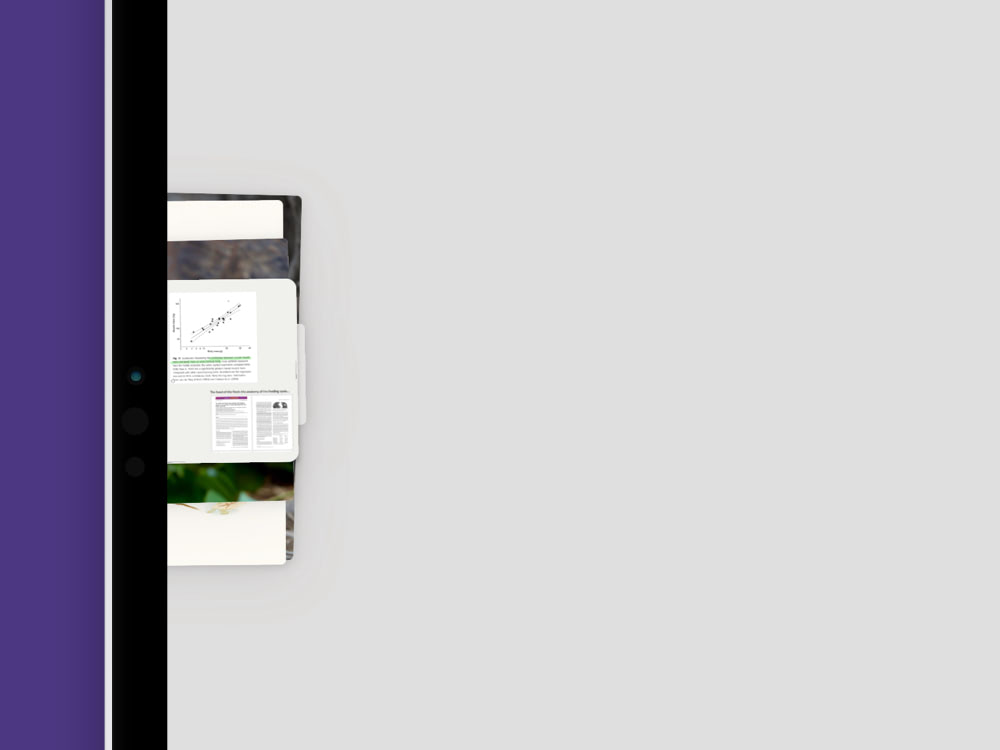
the inbox
a persistent stack of cards on the left edge of the app where added cards appear; stays with you as you navigate
to move to the inbox
drag a card to the left edge of the screen; it will stay there as you navigate elsewhere
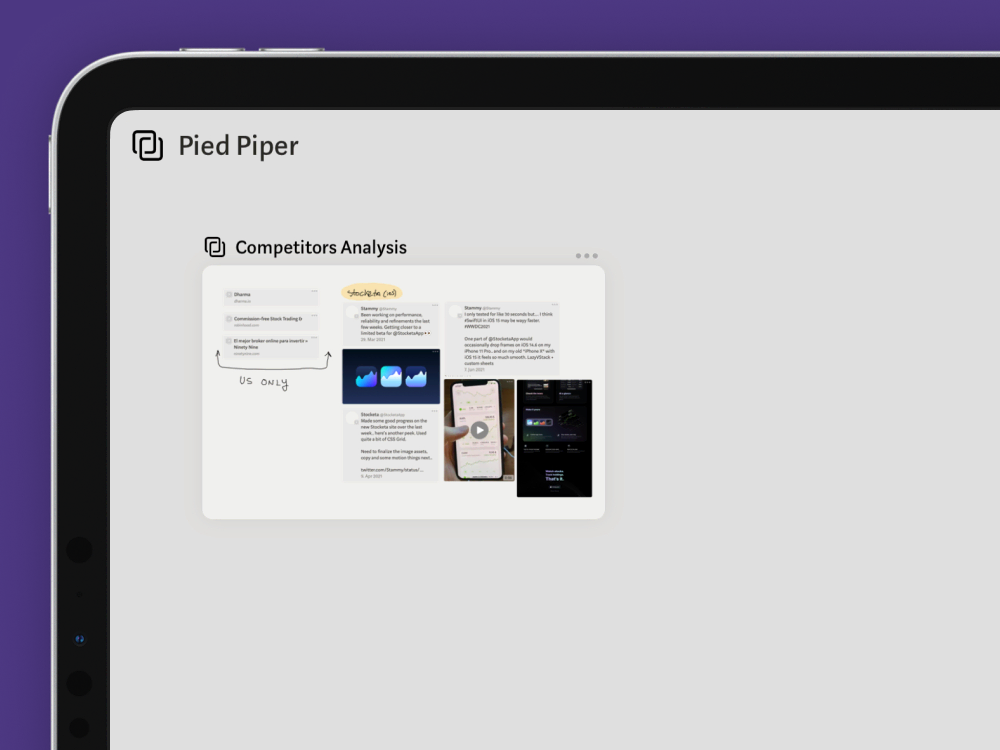
a linked card
copies of a card which point to the same content; add through the card menu of boards, images, videos, PDFs, and note cards
to switch between linked cards
tap on the icon in the top left of a linked card to see where the other linked cards are and navigate to them
to move between boards
while moving content with one hand, use your other hand to navigate in or out of boards by pinching
to move to new board
select the content you want to move, then tap "Move to new board" in the selection menu.
to toggle board overview
on boards larger than your screen, tap the button with the two arrows in the bottom left corner to get an overview of the full board; tap anywhere to zoom back in
to use split view
slowly swipe up with one finger from the bottom edge of the screen to open the dock, then drag an app icon to the left or right edge of the screen to open that app alongside Muse (→ learn more about iPadOS multitasking)
to use slide over
swipe in with one finger from the right edge of the screen to view another app in a small window while using Muse (→ learn more about iPadOS Slide Over)
to search
swipe down from the middle of your iPad’s home screen to search Muse for card titles (→ learn more about iPadOS search)
Want more?
to become a member
buy a membership for more cards, larger boards, and to support Muse (→ learn more about Muse pricing)
to stay in the loop
follow @MuseAppHQ for previews of new features and more
to email the Muse team
write us your questions, feedback, and ideas; we’re excited to hear from you: hello@museapp.com